
Welcome to the documentation for integrating Yoti Age Verification with Shopify.
The Yoti Age Verification Service helps retailers stay compliant when selling age-restricted products by offering two flexible verification options within a single app:
Site-wide Age Verification (Storefront age-gating)
This feature allows merchants to enable site-wide age verification through a pop-up that blocks access to the storefront until the customer successfully verifies their age.
Check-out Age Verification
This feature ensures that age verification is triggered only when age-restricted items are present in the cart. Retailers need to tag such products with the “age_check_required” tag.
If the cart includes only unrestricted products, the age verification button will not appear during the checkout process.
If any age-restricted item is added, the age verification button automatically appears during checkout.
This ensures a seamless checkout experience while maintaining compliance with restricted products.
Checkout Age verification extension are available only to stores on a Shopify Plus plan.
In order to configure the integration, an organisation must be registered with Yoti. For information on how to do this, please refer to our Onboarding guide.
Details you will need:
A verified organisation through the Yoti Hub
Age Verification API Key consisting of an SDK ID and a Bearer Token
The following are the integration steps:
Download the plugin
Install the plugin
Add your keys and configure the plugin options
Enable Age verification for relevant posts/pages
Install the plugin
Go to the Shopify App Store and search for Yoti Age Verification Service.
Link to our shopify app - Yoti Age Verification Service
Click Install.
You’ll be redirected to admin.shopify.com → log in with your account.
If you’re already logged in, you’ll see a prompt to install.
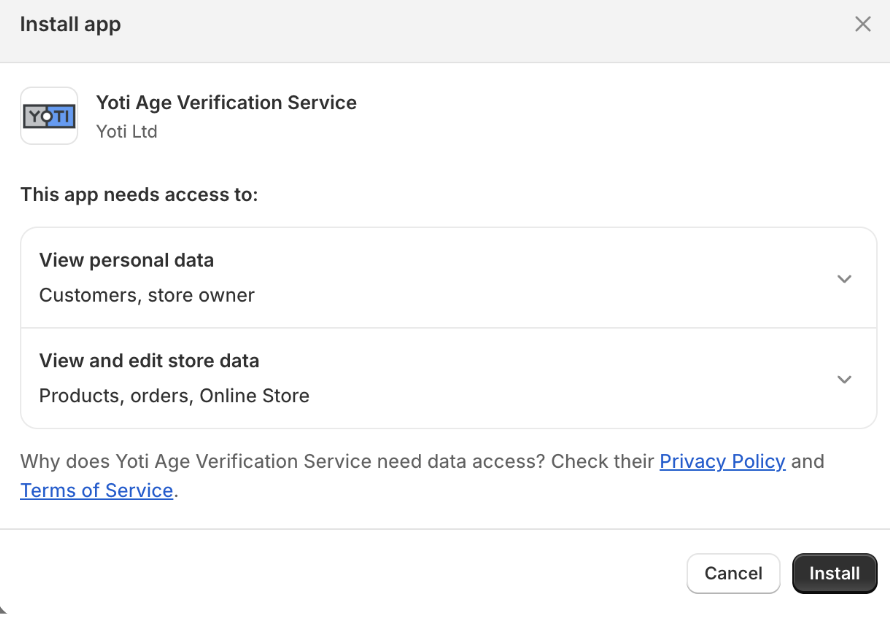
Click install the app
Once installed, click the View Setup Guide button at the top → follow the steps shown.

Yoti has two extensions:
Theme App Extension (site-wide protection)
Checkout Extension (checkout-level verification)
Theme App Extension
Go to Shopify Admin → Online Store → Themes.
Click Customise on your active theme.
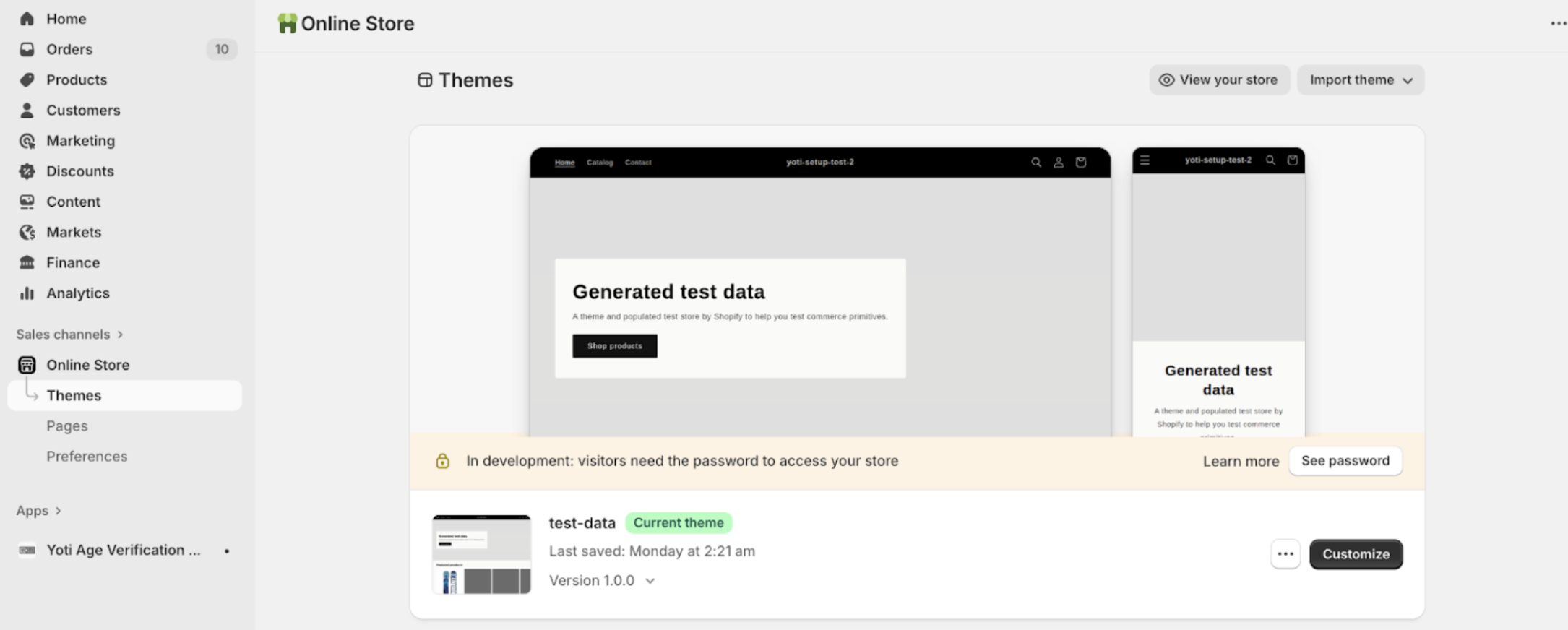
In the theme editor, click Add embeds (bottom left).
Search for Yoti Age Verification Service and add it.
In the app configuration, ensure Enable site-wide age verification is checked.
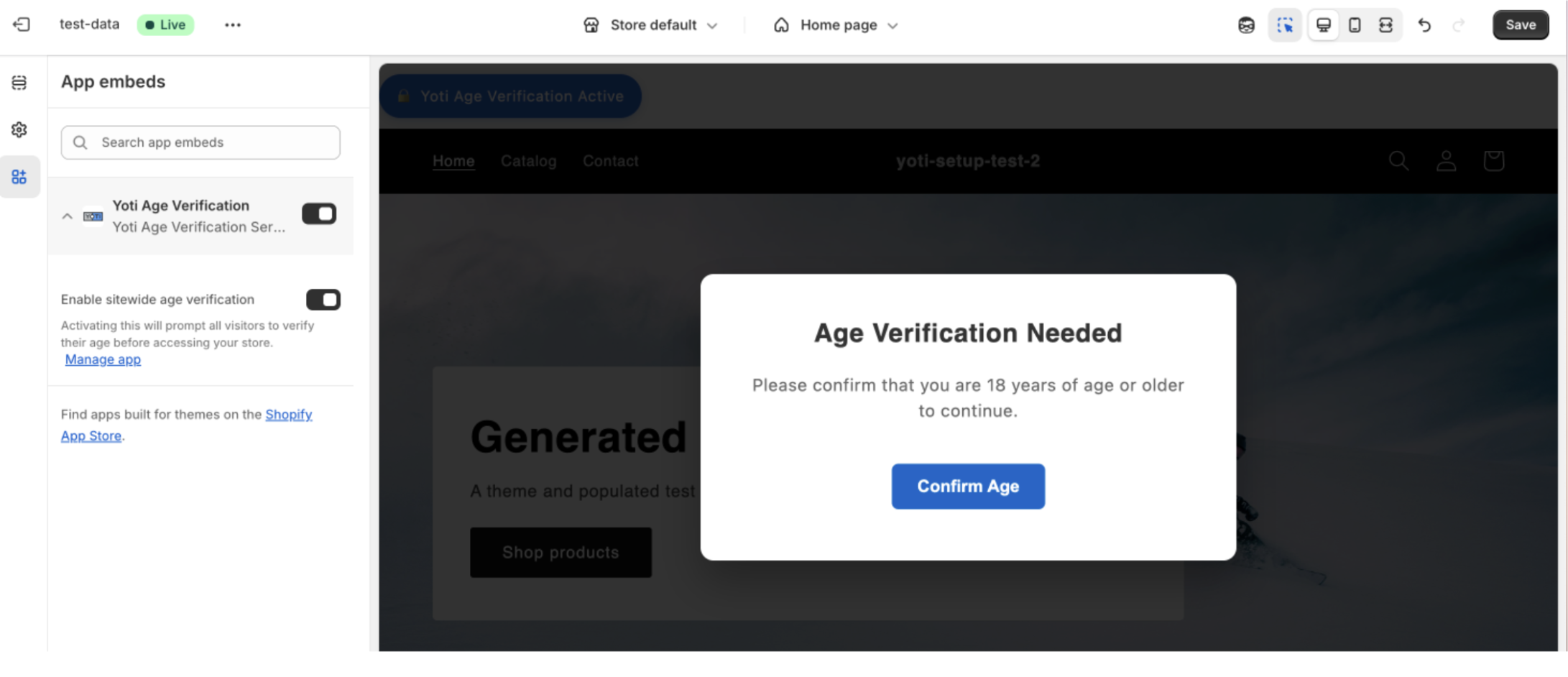
click Save.
The Enable site-wide age verification option must be checked in your app settings before setup.
Checkout Extension
Go to Shopify Admin → Settings → Checkout → Customise.
Under Apps, find yoti-avs-checkout.
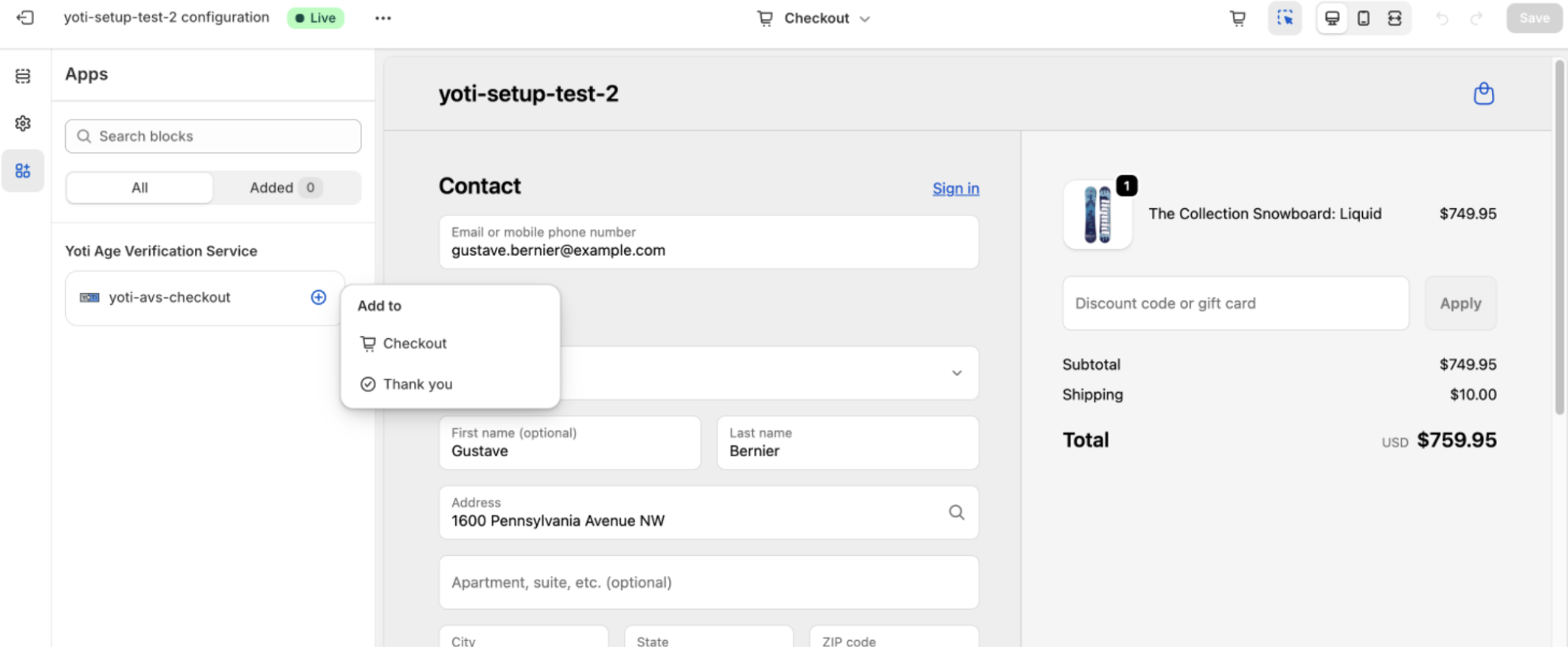
Click ➕ Add to include it in your checkout flow.
Add the block in Checkout → ensures age verification before order completion.
Add the block in Thank You → captures the order ID and updates order metafields.
Click Save.
Product Tags
Go to Products → open a product that requires age verification.
Scroll to the Tags section.
Add the tag: age_check_required.
Save the product → verification will now trigger at checkout for this product.
Plugin Settings
See below for all the configuration you need for the plugin:
Setting | Description | Example |
|---|---|---|
Enter the minimum age | Define the age threshold. | If set to 21, only customers verified to be 21 or older can complete checkout. |
Verification Timeout (seconds) | Defines how long a verification session remains valid before it expires. Customers must complete their age verification within this time window. | Setting this to 900 = 15 minutes. |
Enable cookies for IP verification | When enabled, the customer’s IP location data is cached using cookies. This prevents repeated API calls on every page load. | N/A |
IP Location cache duration | Choose how long the IP location data should be cached before it is checked again. Applies to both site-wide and page-level verification. | Default: 24 hours |
Enable IP Whitelist | Allow specific IP addresses to bypass age verification. Useful for physical stores or staff networks where employees need to access the site without going through verification. | 0.0.0.0 |
Add IP address or range | Enter individual IPs or CIDR ranges to be whitelisted. | 192.168.1.100 or 10.0.0.0/24 |
Age verification methods | You can choose one or more verification methods:
| Age Estimation |
Success Message | Enter the message your customers will see after successfully verifying their age. | Age verification successful! You can now continue with checkout |
Failure Message | Enter the message your customers will see if their age verification is unsuccessful. This message will appear if the customer does not meet the minimum age requirement or fails the verification process. | Sorry, you could not be verified as over 18. You cannot complete this purchase |
Allow Checkout on Verification Failure | Allow checkout even if age verification fails. | Disabled (default): Customers who fail age verification and cannot complete checkout. This is the recommended setting for compliance. Enabled: Customers may proceed with checkout even if they do not pass age verification. |
Theme App extension Settings
These settings are specific to the theme app.
Setting | Description | Example |
|---|---|---|
Enable Sitewide Age Verification | When enabled, visitors will see an age verification Pop-up before accessing any page on your storefront. This ensures that your content or products are restricted to users of a certain age. | N/A |
Pop-up Title | This text appears at the top of the age verification Pop-up and informs users about the requirement. | Age Verification Required |
Pop-up Message | Provides a clear explanation of the age requirement to visitors. | Please confirm that you are 18 years of age or older to continue |
Verification Button Text | This text is displayed on the button that users click to start the age verification process. | Example: _“_Confirm Age” |
Session Duration (seconds) | Once a customer completes age verification, they will not be prompted again for the duration specified. This prevents repeated verification prompts during browsing sessions. | Default: 86400 seconds (24 hours) |
Page Exception List (Optional) | Specify pages where age verification should NOT appear. When enabled, verification will show on all pages except the ones listed below. Leave empty to show on all pages. When enabled, age verification will be shown on all pages EXCEPT the pages you specify below. | Enter page patterns to exclude from age verification, one per line. Examples: 'home', 'collections/catalog', 'pages/about', 'videos', 'products'. Age verification will show on all other pages. |
Geographical Restrictions
Use of geographical restrictions requires a third party API key. If this is not supplied the below settings will not be revealed.
You can configure age verification to be enabled only for specific countries and states/regions. A third party ipify API key is required to enable geolocation, If no countries are selected, the age verification will be shown to all visitors globally.
Setting | Explained | Example |
|---|---|---|
Ipify API Key | The Ipify API key to enable geolocation-based age verification. The key will be validated before saving. | N/A |
Enable cookies for IP verification | When enabled, IP location data from ipify will be cached. Disabling this will cause the ipify API to be called on every page load. | N/A |
IP Location cache duration | How long to cache IP location data before checking again. This setting applies to both sitewide and page-wise verification. | 24 hours |
Select Countries | The specific countries that age verification will be shown to. | United Kingdom |
Select States/Regions | The specific states/regions that age verification will be shown to. | City of London |
Location-Based Age Configuration | Set different age thresholds and enable/disable specific verification methods for each country and state/region. If not configured, the default age threshold (18) and global method settings will be used. | N/A |
Results
When a customer successfully completes age verification, the verification result is now stored in the Shopify Admin via metafields.
The metafields are created and updated using the customer’s order ID once the purchase is completed. This ensures that each order has an associated age-verification record, enabling merchants to track and audit verification status directly in the Shopify Admin.
The stored metafields allow consistent, persistent verification data across the store, improving compliance and record-keeping
Thank you page
To successfully receive the final verification result and update metafields, the merchant must add the Thank You extension to the Thank You page.
To enable this:
1. Open the Yoti Age Verification app.
2. Go to the Setup page.
3. Click the Enable checkout verification button.
4. In the Shopify editor, under the Apps section, locate the yoti-avs-checkout block.
5. Click Add to → Thank you and add the extension to the Thank You page.
This step is mandatory, as the Thank You extension is responsible for delivering the final age-verification result back to the app, which is then used to update the metafields for the order.