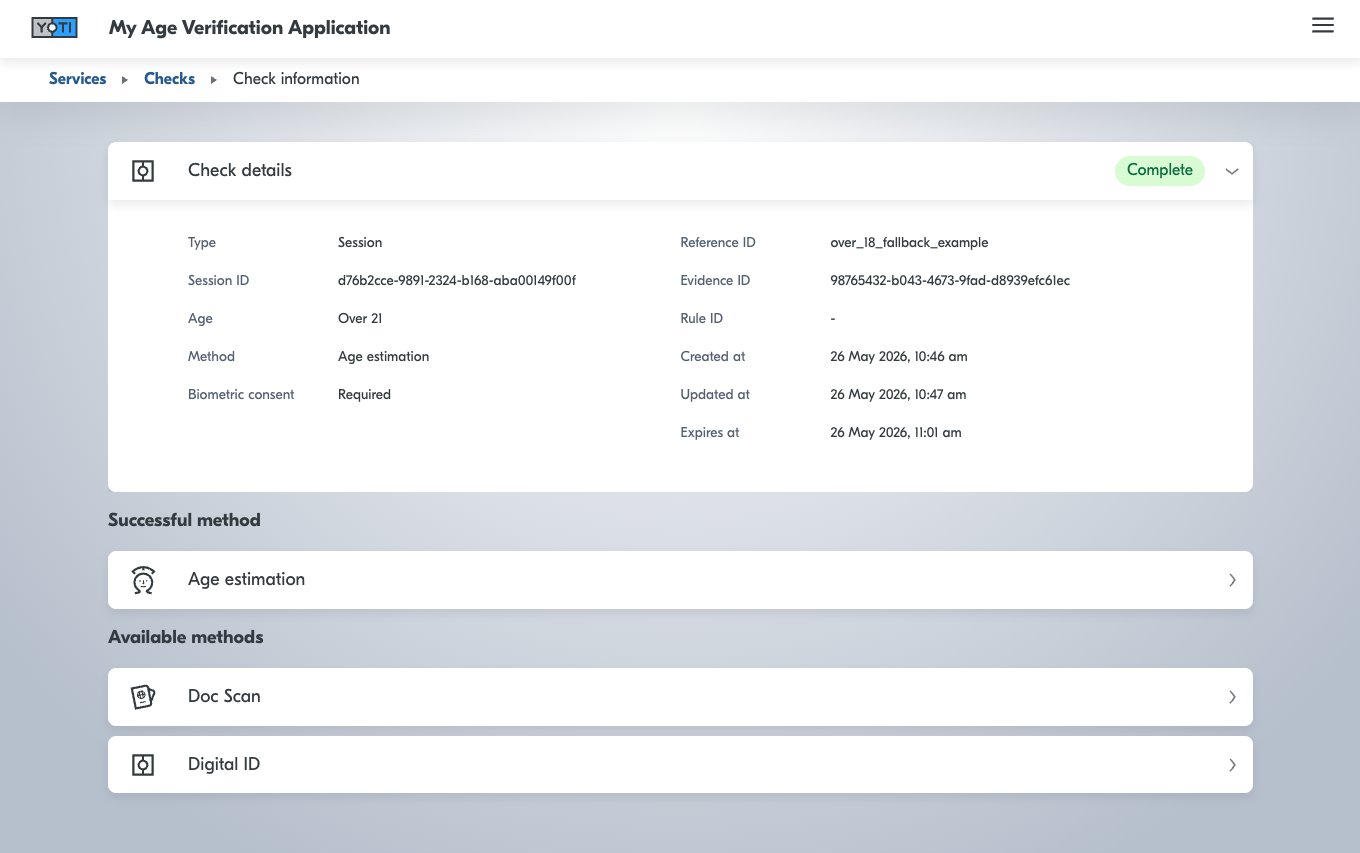
Yoti provides a portal where you can view the results of your checks.
To get set up, you will need to follow these steps:
Set up an account on the Hub.
Add yourself as a portal user to your age verification service.
Log on to the Portal.
The following will guide you step by step through the setup.
Help If you need any help, please get in touch with us through our support form.
Add users
To add a user to your portal:
Log in to the Yoti Hub
Select your age verification service
Go to the Portal Users tab
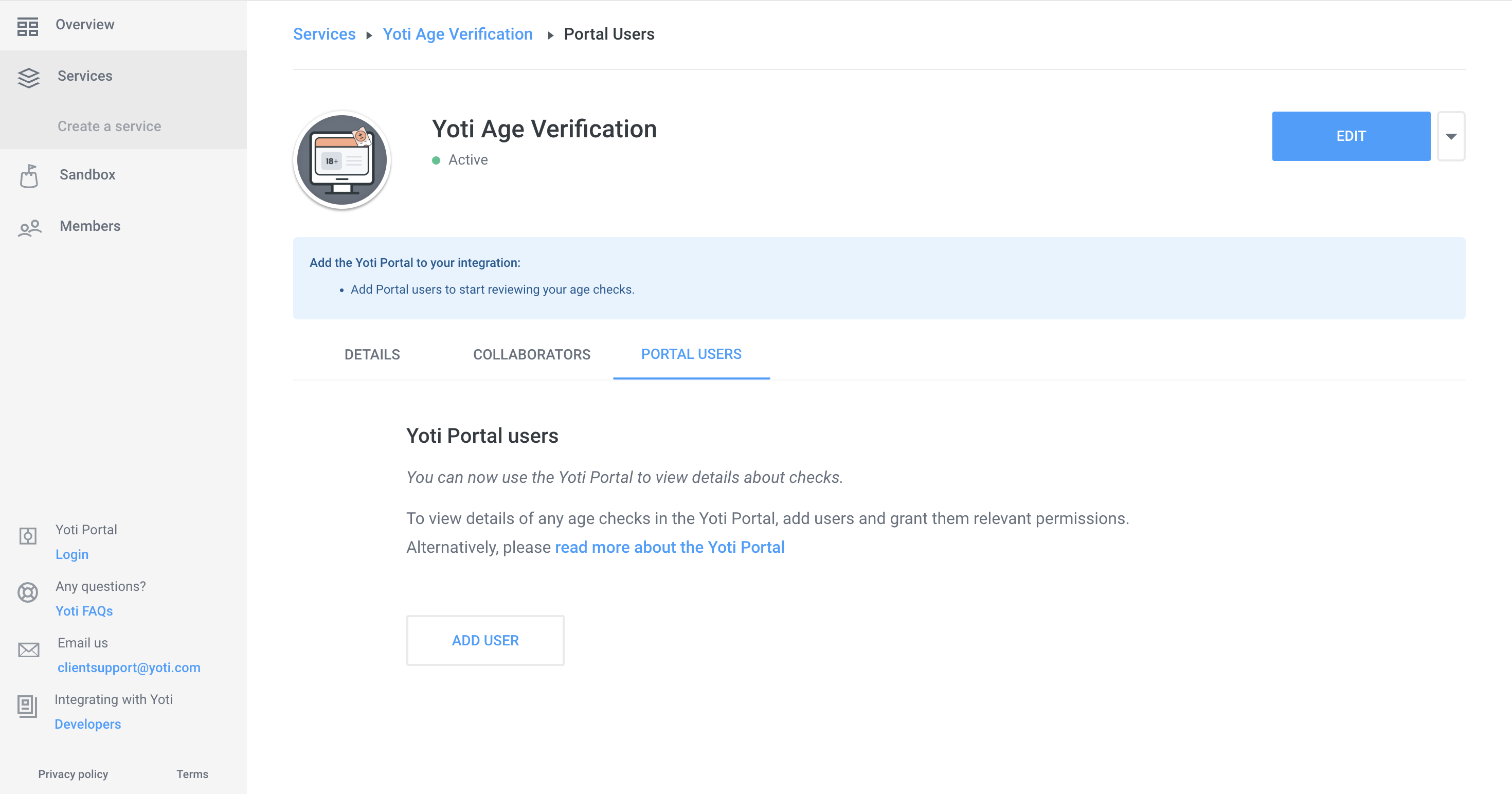
Click "Add User"
Type in the person’s email address.
Once you add a user, they will receive an email invitation to register a portal account.
All users will receive an email from Yoti. They will then need to register on the portal at https://identity.yoti.com/iam/create. The new users will be guided through this via the email they receive.
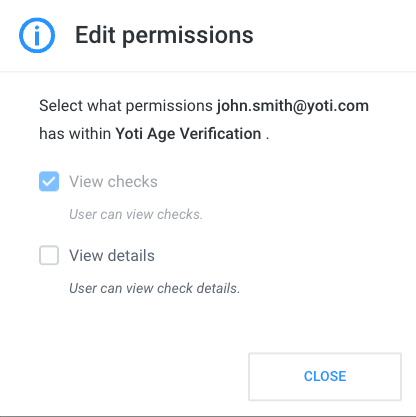
You can change a user's permissions so they can either just view the check results or also see detailed information about the check.
Login
Once you have set your preferences, you can start using the portal. If you included yourself in the service created above, you will get an email directing you to the portal.
Log in at https://identity.yoti.com/
Create an account or scan the QR code. Your email address should be the same as what you entered in your service.
All users must set up 2 factor authentication to access the portal. This can be done easily using the Yoti App or popular authentication apps like Google Authenticator or Authy.
Your home page will be a list of services. Click the relevant Age verification service. If this is your first time using the product, there will only be one.
Log out
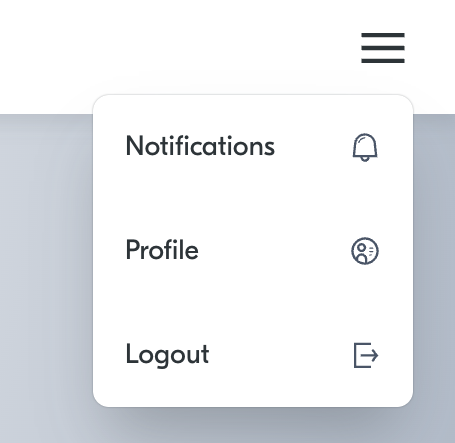
To log out of the portal, click the menu button in the top right corner of the page and click on the log out button. If you do not log out, your account will stay logged in for 24 hours until it auto-logs you out.
Session Results
Once logged in, you will see a dashboard with all the sessions that have already been created or completed:
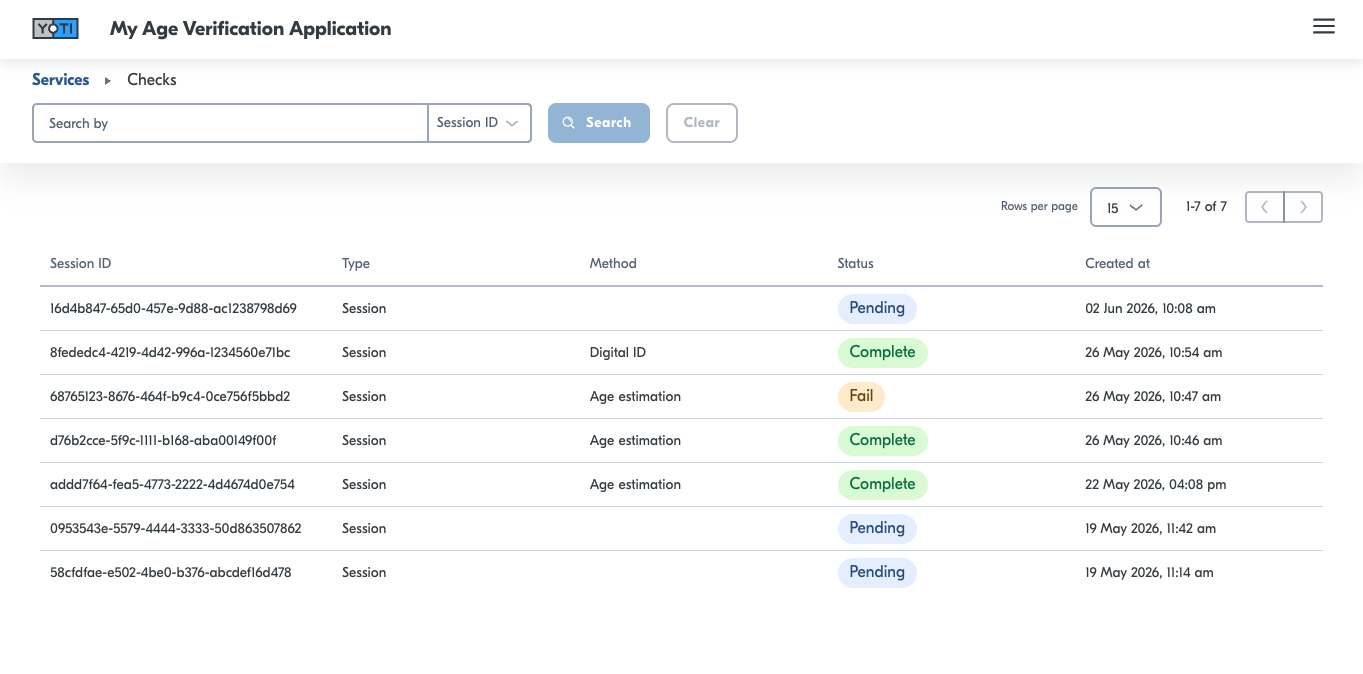
The statuses are related to the following reasons:
Status | Description |
|---|---|
Complete | The session has been completed, the user has passed the required threshold or an age has been returned. |
Fail | The session has been completed; however, the user has failed to meet the age threshold. FAIL will be returned only for 'OVER' and 'UNDER' attempts. |
Pending | User has not started any checks. |
In progress | Checks have begun on the session, awaiting the result to be returned. |
You can get a breakdown of the result by clicking on the tab: