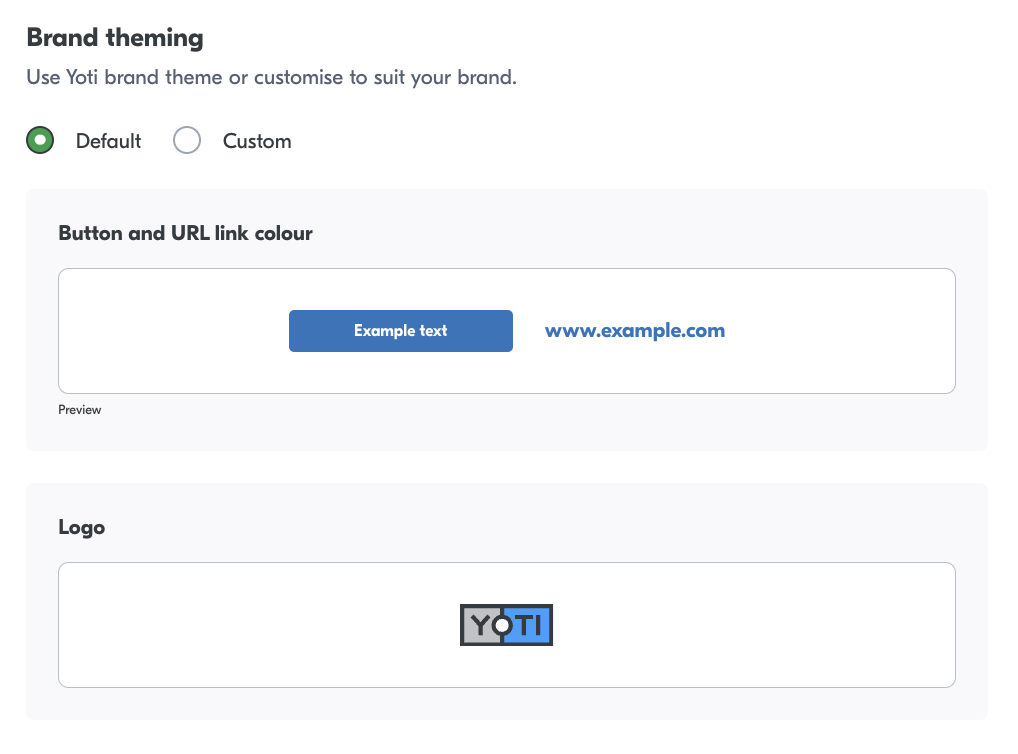
To edit the email template:
Go to the portal email tab
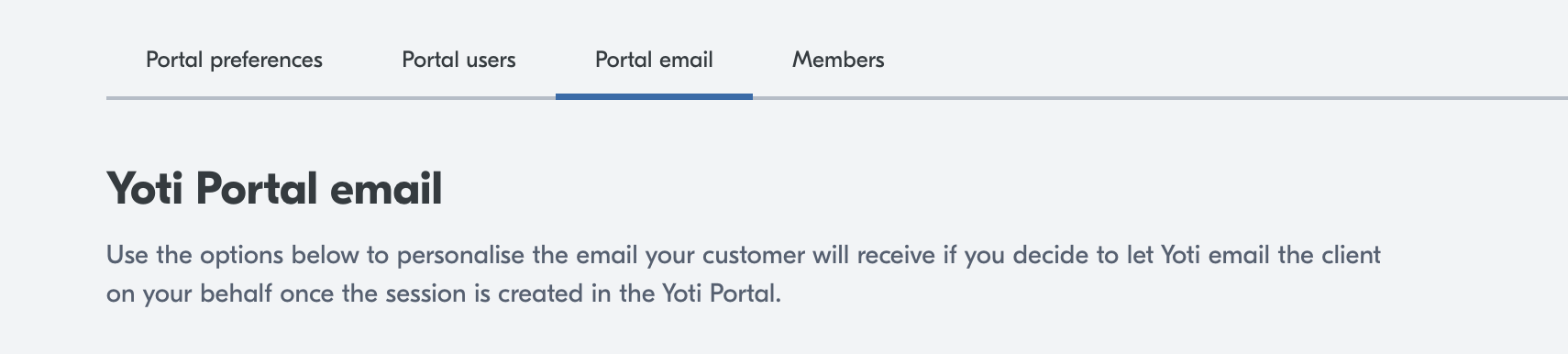
When creating a session in the Yoti Portal, you can choose to have Yoti email your end user on your behalf. The email includes a link that takes the end user directly to the Yoti identity verification journey. This page explains how to personalise that email so it matches your brand and gives your customers clear next steps.
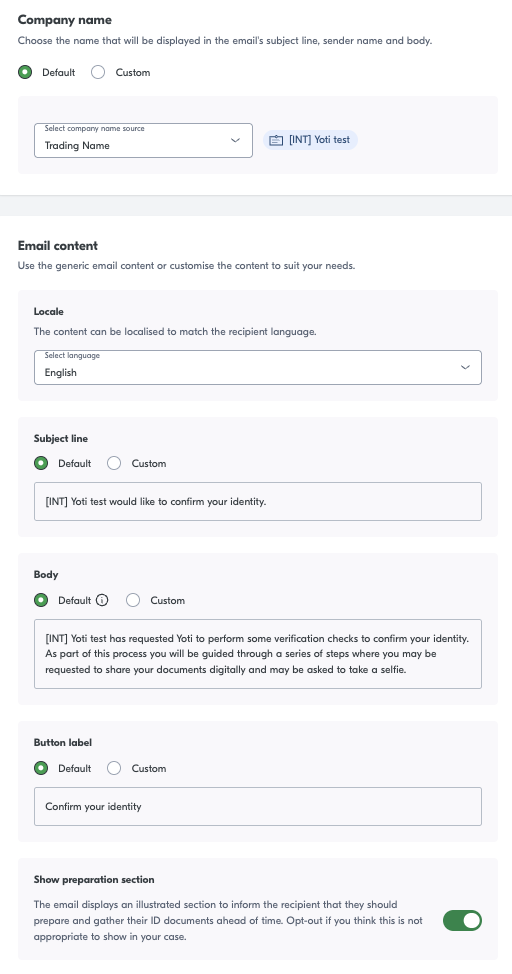
Configurable options
Email element | Description |
|---|---|
Company name | The company name shown in the email. |
Locale | The language the text will display in. |
Subject line | The email subject line which summarises what the email is for. |
Body | The email body that explains why the user is receiving the email and what to do next. |
Button label | Text displayed on the button that launches the identity verification checks. |
Brand theming
Customise the verification experience with your brand colours and logo, or use the default Yoti theme.