
If you wish to request a document from the user, this section will provide you with context on what this check entails. Yoti will provide a report of the results from the document check.
The user will have the option to upload an image or capture a photo of their document. This is configurable in your session creation via our API / SDK or Portal settings. Yoti recommends you have both options available.
This section will describe:
What document checks are performed.
How to enhance your document check.
Outcome report with recovery suggestions.
Our hybrid approach uses both automatic and manual processes to check the security features of each unique ID document to make sure it’s genuine.
The checks below are related to document checks available at Yoti:
Name | Description | Resources | Manual check available |
|---|---|---|---|
Document authenticity | A request to assess the characteristics of a document, to determine the validity of the ID document. Yoti will perform multiple checks on a ID document. | 1x Document Resource | ✅ |
Text extraction | A request to obtain the data printed visually on a document, in structured form. | 1x Document Resource | ✅ |
Supported documents | List of documents supported | N/A | N/A |
Enhance your check
Add these features to enhance your check for a stronger verification.
Name | Description | Resources | Manual check available |
|---|---|---|---|
Filters | Restriction of document types / countries. If you do not wish to accept all documents or countries you can configure your session to add / remove which countries and document types are displayed to the user on the user view. | N/A | N/A |
Supporting documents | Yoti offers the ability to request additional documents to enhance the verification of the user. Supporting documents:
| 1x Document Resource | ✅ |
Document comparison | If you request your users to upload more than one document we offer the ability to cross check the data | 2x Document Resource | ❌ |
NFC | Enable Near Field Communication (NFC) for native integrations. | 1x Document Resource | ❌ |
Translations | Change the language of the information displayed to the end user. | N/A | N/A |
User flow
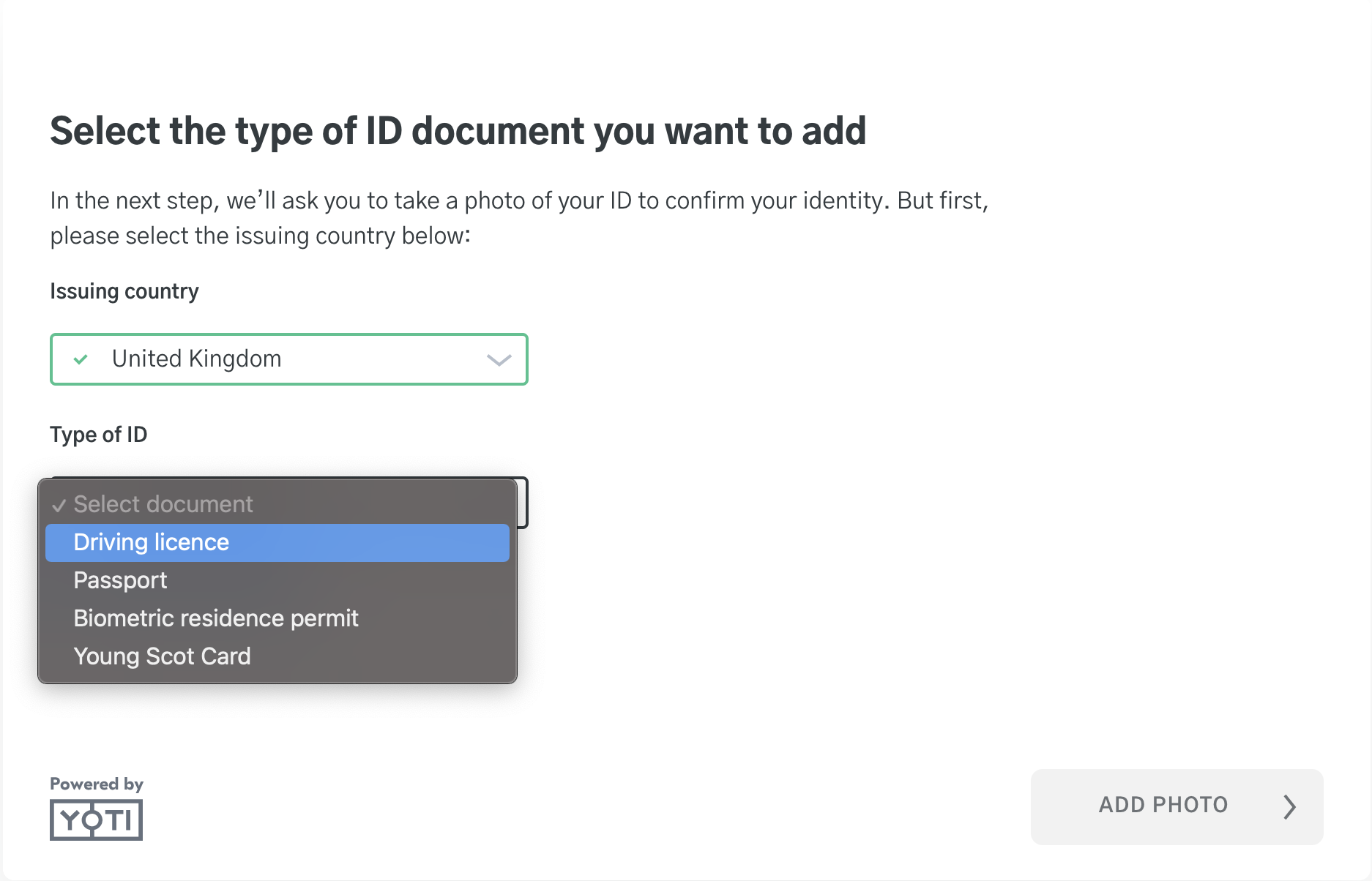
The user will be presented with a drop down of countries and types of ID to pick from. If you like you can preset which country is shown first, you can also remove countries and document types you do not want to support.
The user will take a photo of their ID or upload their ID. Yoti will predominately highlight taking a live capture over upload. You can remove the option to upload if you wish.
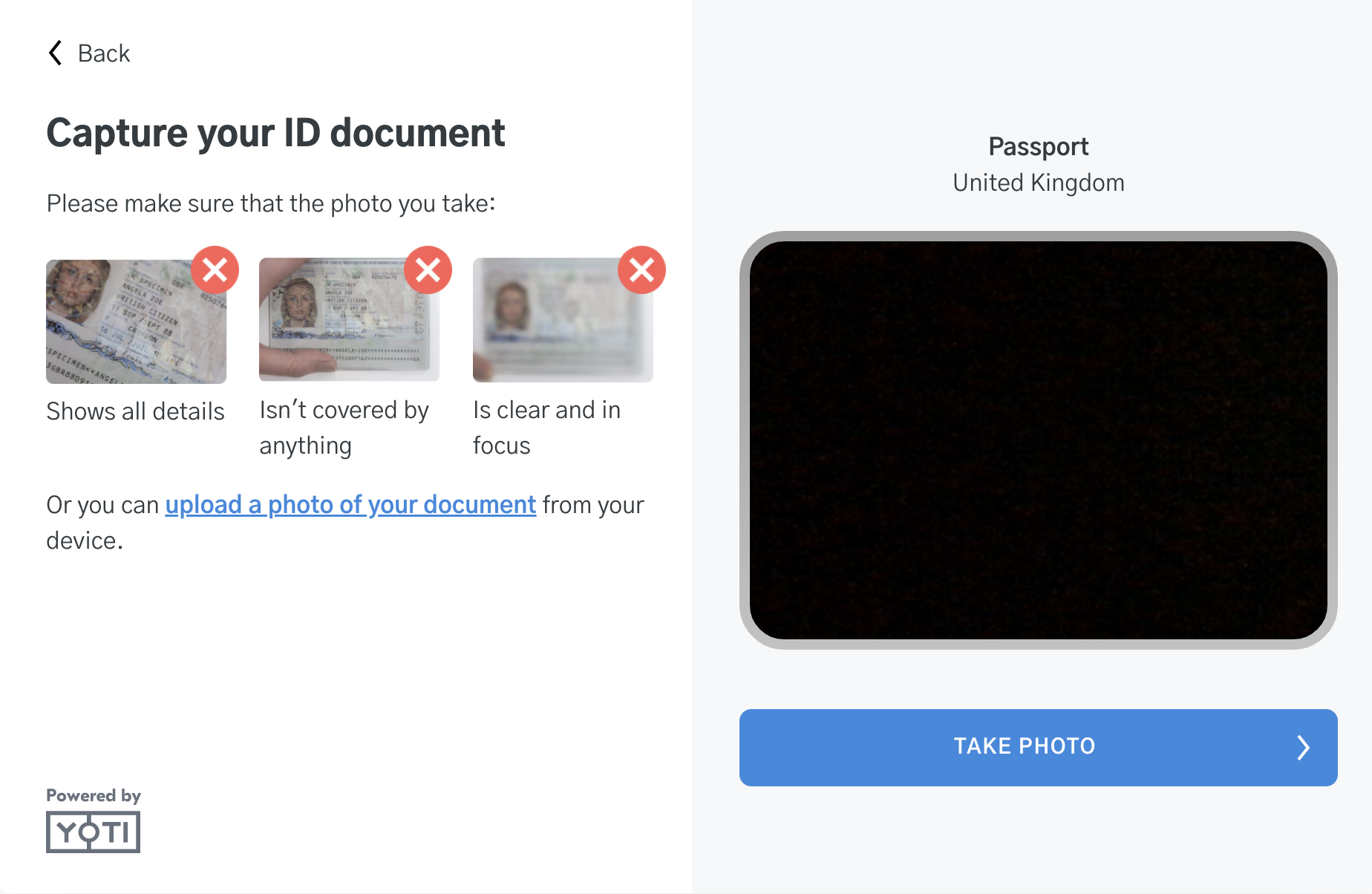
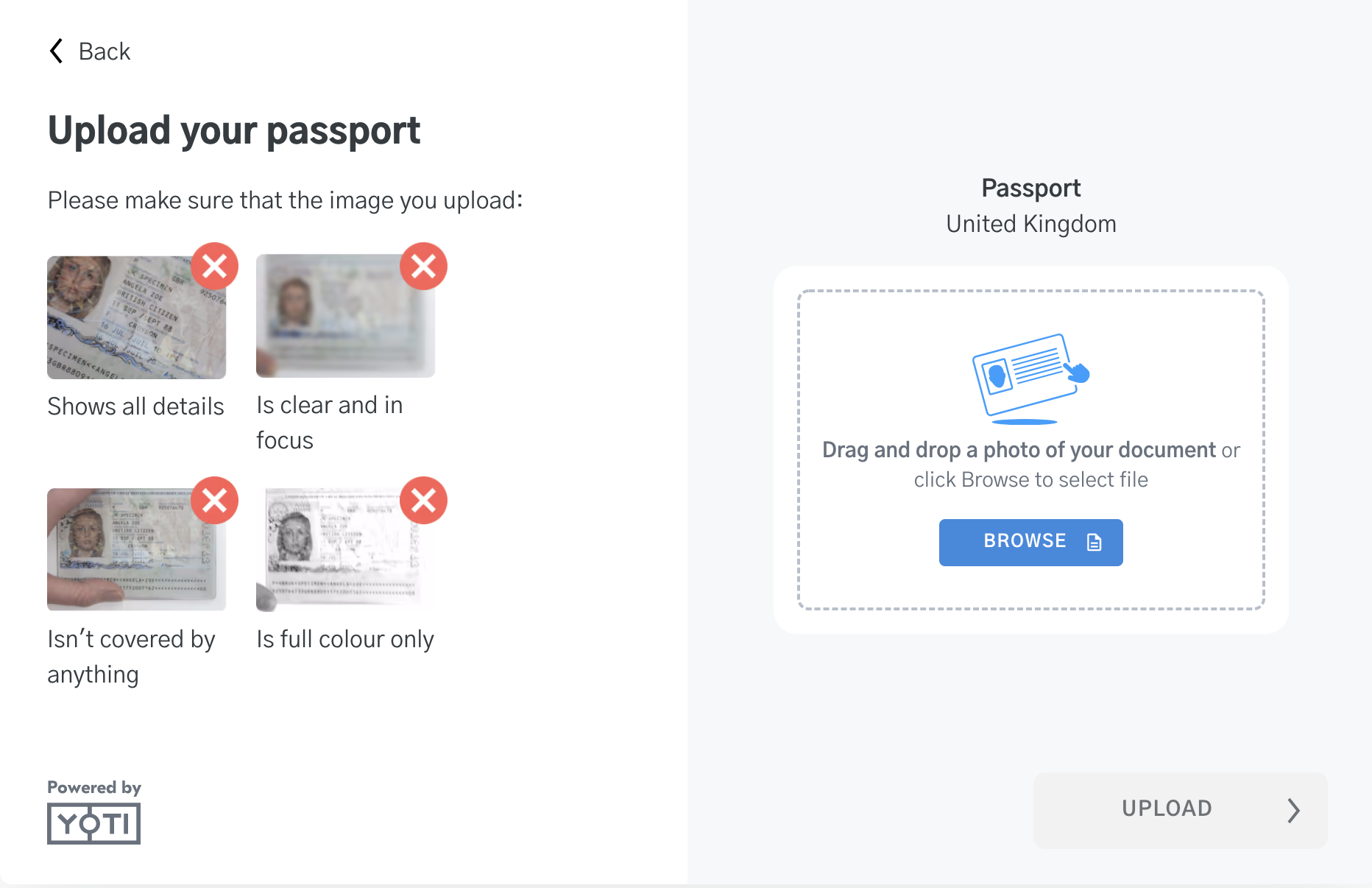
Note: Some documents may ask for the front and the back of the document. If the document has been uploaded incorrectly we will trigger in session feedback to prompt the user to try and upload again.
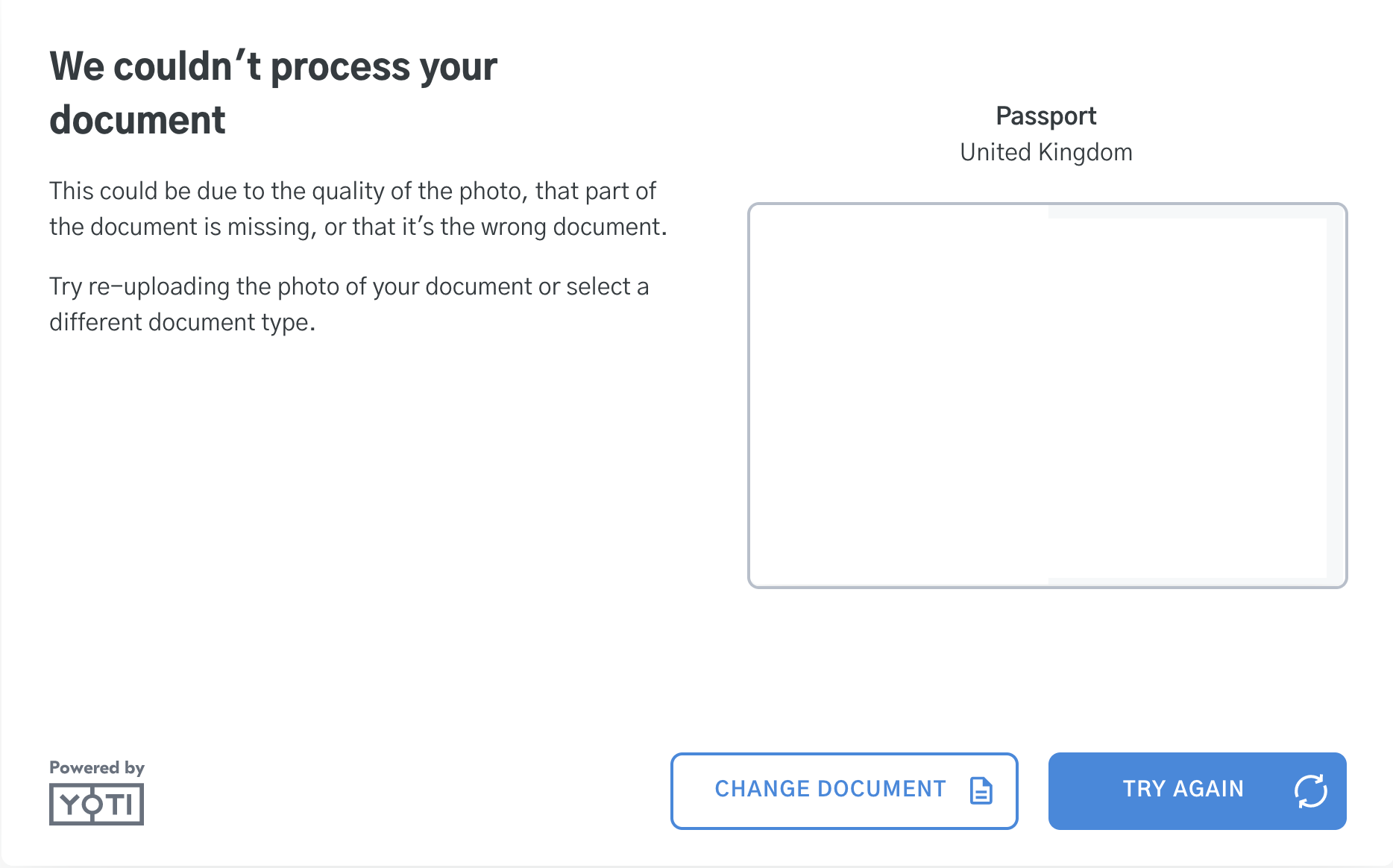
The user will need to either Change the document or try again.
The user will be presented with a complete screen.
At this point you can redirect the user to a success URL / Error URL.
Results
Yoti performs numerous checks on a document in order to generate this report. Yoti will also provide a recommendation for the authenticity of the document:
Recommendation | Explained |
|---|---|
🟢 APPROVE | The document has passed Yoti verification standards. |
🔴 REJECT | The document could be tampered or a counterfeit. Yoti recommends you flag users that are rejected. |
🟠 NOT_AVAILABLE | Yoti couldn’t perform the check, usually due to the quality of submitted images or user error. |
As part of the document check, Yoti performs multiple sub checks on the document explained below. The results for the sub checks will be PASS or FAIL. All sub checks state whether the check was performed through a manual process (Expert Review), or through Automation.
The report breakdown will only display sub-checks that have been attempted.
Sub-checks designated as 'Automated' require document data to be extracted, and therefore the data extraction task to be configured.
Sub check | Description | Automated |
|---|---|---|
no_signs_of_forgery | Yoti will assess multiple features of the document to include a wider range of checks. On failure, Yoti will provide a PASS / FAIL breakdown with respective detail on:
| ❌ |
no_sign_of_tampering | If Yoti does detect a tampered document we will highlight where. | ❌ |
hologram | Yoti will detect if we can see a shape / colour of the hologram. | ❌ |
hologram_movement | Check hologram movement. | ❌ |
other_security_features | Yoti will detect if the supplementary security features are valid | ❌ |
physical_document_captured | This sub check is to verify that the original document was used, and that the presented document isn't shown on screen, or presented as a photocopy. This sub check will result in an overall Document Authenticity rejection if the document is submitted through the live camera and the sub-check is marked as fail. It will not cause a rejection if the capture method is upload. | ✅ |
document_in_date | If a valid expiration date is present on the document. | ✅ |
fraud_list_check | Yoti will check a fraudulent document database for a match. | ✅ |
ocr_barcode_comparison | This check is performed if fields extracted using OCR from the VIZ (visual inspection zone) of the document and fields extracted from the barcode of a same document both have the mandatory fields populated with values. | ✅ |
doc_number_validation | When there is a driving licence where text extraction has been successful (auto or manual) Yoti will attempt to validate the document number. This check will only be returned for UK Driving licences and Canadian licences (Ontario, Newfoundland and Quebec). | ✅ |
mrz_validation | Validates that the MRZ of the document is in the expected format. | ✅ |
ocr_mrz_comparison | Comparison between the visual inspection zone of the document and the MRZ. This check would commonly be performed for Passports, but can be run on other documents that have an MRZ. | ✅ |
issuing_authority | This sub-check checks the document information against the Issuing Authorities records. Only triggers if the requested check is enabled, with a document that supports the check. | ✅ |
age_estimation_dob_comparison | This sub-check performs an Age estimation on the captured selfie, comparing it to the ID document date of birth. For more details on Yoti's Age Estimation, read our White Paper here. | ✅ |
chip_parse | If chip data is present | ✅ |
chip_sod_parse | If Security Object Document is present | ✅ |
chip_data_integrity | Checks the data integrity on the chip | ✅ |
chip_digital_signature_verification | Verifies the digital signature and trust chain | ✅ |
chip_csca_trusted | Checks if the Country Signing Certification Authority (CSCA) Certificate is trusted | ✅ |
yoti_fraud_list_check | Checks against Yoti's fraud watchlist for a match on the ID document. This sub-check will always be performed, is returned as PASS when no match is found, or FAIL when there is a match. For cases where a possible match is found, the session will be sent for additional manual checks to determine the final check outcome | ✅ |
document_recognition | Returns whether the Identity document matches a known template. Acts as a flag for multi side documents (such as ID cards or DLs) where templates may differ between the front and back, indicating a different document was used for each side | ✅ |
portrait_integrity | Automated check to inspect for document ID portrait tampering | ✅ |
advanced_visual_authenticity | This is an automated check that performs additional visual authenticity checks | ✅ |
yoti_fraud_selfie_check | Checks against Yoti's fraud watchlist for a match on the live face image captured. This sub-check will be performed if a live face image is captured in the session. It is returned as PASS when no match is found, or FAIL when there is a match. For cases where a possible match is found, the session will be sent for additional manual checks to determine the final check outcome. | ✅ |
Rejection Results
For the list of rejection suggestions, please see below, which will allow you to provide the user a correction attempt:
Yoti Reason | Description | Recovery Suggestion |
|---|---|---|
COUNTERFEIT | Yoti's document specialists have deemed that the printed document is a counterfeit document. | You may want to flag this user. |
EXPIRED_DOCUMENT | The document expiry date is in the past and the document is no longer valid. If you would like to accept expired documents you can enable this as part of your integration. | Ask the user to try again with a different document. |
FRAUD_LIST_MATCH | The document provided matches the name or document number of an existing document on a fraud list. | You may want to flag this user. |
DOCUMENT_COPY | The images submitted are not of the original document, either a print out of an image of a screen has been captured. | Ask the user to try again with the original document. |
ISSUING_AUTHORITY_INVALID | If the Issuing Authority check is requested and fails, this rejection will be returned. See more on this check here: https://developers.yoti.com/identity-verification/issuing-authority | You may want to flag this user. |
TAMPERED | Yoti's document specialists believe that the document has been altered - eg, the data has been altered or the portrait has been replaced. | You may want to flag this user. |
MISSING_HOLOGRAM | We will fail this sub check if our document specialist cannot see the expected hologram. A failure in this sub check will not cause the overall document authenticity check to fail. | N/A |
NO_HOLOGRAM_MOVEMENT | If we capture multiple images of a document on a native mobile integration and do not see any differences within the hologram then we will fail this sub check. A failure in this sub check will not cause the overall document authenticity check to fail. | N/A. |
DATA_MISMATCH | We will run a comparison when data is present in multiple places - eg in the VIZ, MRZ and Barcode of a document. If there is a mismatch between these sources, this rejection will be returned. | You may want to flag this user. |
DOC_NUMBER_INVALID | We validate the document number, if the value present doesn't align with the other data fields, this rejection will be returned. | You may want to flag this user. |
CHIP_DATA_INTEGRITY_FAILED | When performing an NFC chip read, if the data is not as we expect based on the MRZ data, then this rejection will be returned. | You may want to flag this user. |
CHIP_SIGNATURE_VERIFICATION_FAILED | If we are unable to verify the signature of the NFC chip, we will return this rejection. | You may want to flag this user. |
CHIP_CSCA_VERIFICATION_FAILED | This rejection will be returned if we're unable to verify the CSCA certificate of the chip. | You may want to flag this user. |
AGE_DISPARITY | We may perform an age estimation of the user if they perform a liveness check. If the estimate age differs extremely from the date of birth on the document then this rejection will be returned. For more details on Yoti's Age Estimation, read our White Paper here. | You may want to flag this user. |
PORTRAIT_ALTERED | The portrait on the document of the user looks to be altered or changed in some way. | You may want to flag this user. |
Not Available Results
If Yoti was unable to perform checks, here is a list of the responses we will return:
Yoti Reason | Description | Recovery Suggestion |
|---|---|---|
PHOTO_OVEREXPOSED | The image is too bright to confidently perform our checks. | Ask the user to try again ensuring no excessive light is on the document. |
PHOTO_TOO_DARK | The image is too dark to confidently perform our checks. | Ask the user to try again and move into a lighter area. |
PHOTO_TOO_BLURRY | The image is too blurry or out of focus to confidently perform our checks. | Ask the user to try again with the ID document on a flat surface, or to use their mobile. |
DOCUMENT_TOO_DAMAGED | The physical document has too much damage, affecting the legibility of the data or some security features. | Ask the user to try again with a different ID document. |
GLARE_OBSTRUCTION | There are bright reflections on the document, obscuring parts of the data or security features. | Ask the user to try again. |
OBJECT_OBSTRUCTION | There are physical items blocking parts of the data or security, eg a thumb. | Ask the user to try again and ensure you can see the ID fully. |
NO_DOCUMENT | The images captured do not contain an ID document as required. | Ask the user to try again and to upload a document. |
PARTIAL_PHOTO | The full document is not visible in the image - part of the document may be cropped. | Ask the user to try again and ensure you can see the ID fully. |
IMAGE_RESOLUTION_TOO_LOW | The images captured are low resolution or too pixelated. | Ask the user to try again and to use their mobile. |
COUNTRY_NOT_SUPPORTED | The issuing country of the document is not from Yoti's supported list. See here for a full list : https://developers.yoti.com/identity-verification/supported-documents | The user may not be able to complete the process with Yoti. |
DOCUMENT_NOT_SUPPORTED | The document submitted is not a supported type. See here for a full list: https://developers.yoti.com/identity-verification/supported-documents | Ask the user to try again with a different document. |
INCORRECT_DOCUMENT_TYPE | The document uploaded does not match the document type/country that was selected. EG - the user has selected to upload a driving licence but has uploaded a passport. | Ask the user to try again with the correct selected document. |
DOCUMENT_VERSION_NOT_SUPPORTED | The document type is recognised as a supported document, but does not match a template from our supported list. | Ask the user to try again with a different document. |
MISSING_DOCUMENT_SIDE | Some documents have a front and back page that we must capture, this rejection is returned when we recieve only one of these pages. | Ask the user to try again sending through both sides of the document. |
BLACK_AND_WHITE_IMAGE | The images of the document are not in colour. | Ask the user to try again with a different document or coloured document. |
CHIP_PARSE | This rejection will be returned when we receive data from the NFC chip but cannot parse it correctly. | Ask the user to try again with a different document. |
CHIP_SOD_PARSE | There has been an issue with reading the NFC chip Security Object Document. | Ask the user to try again with a different document. |
Document comparison check
Yoti performs the following sub check explained below which will either be a PASS or a FAIL.
Document comparison compares values of 2 different documents. This is always done automatically.
Sub check | Description | Automated |
|---|---|---|
dob_match | If both documents have date of birth, they will be compared. | ✅ |
name_match | If both documents have name, they will be compared. | ✅ |
For the list of rejection suggestions please see below which will allow you to provide the user a correction attempt:
Yoti response | Recovery suggestion |
|---|---|
MISMATCH | Ask the user to try again and check their documents have the same attributes. |
If Yoti was unable to perform checks here is a list of the responses we will return:
Yoti response | Recovery suggestion |
|---|---|
NON_LATIN_CHARACTER_IN_NAME | Ask the user to try again with latin characters on their document. |
NO_VALID_SUBCHECKS | Ask the user to try again making sure the data is present on the documents. |
For supported documents, we will perform a name comparison. For two ID documents, we will compare both date of birth (DOB) and name.