
Welcome to the developer documentation for integrating the Identity verification service.
You can integrate the Identity verification service in three ways:
PORTAL No need to write any code.
SDKS A wrapper around our backend API to simplify the integration process.
API An API integration, please contact us for the developer documentation.
Technical overview
This section describes the SDK interactions for a web, mobile web and native mobile integration. Data Exchanges will occur securely between the relying party (your backend), Yoti and the client (the end user’s browser or mobile device).
A session represents one end-to-end use of the ID verification service. Each time the ID verification service is initiated (regardless of which specific tasks/checks are required) a unique session identifier is assigned by Yoti's backend.
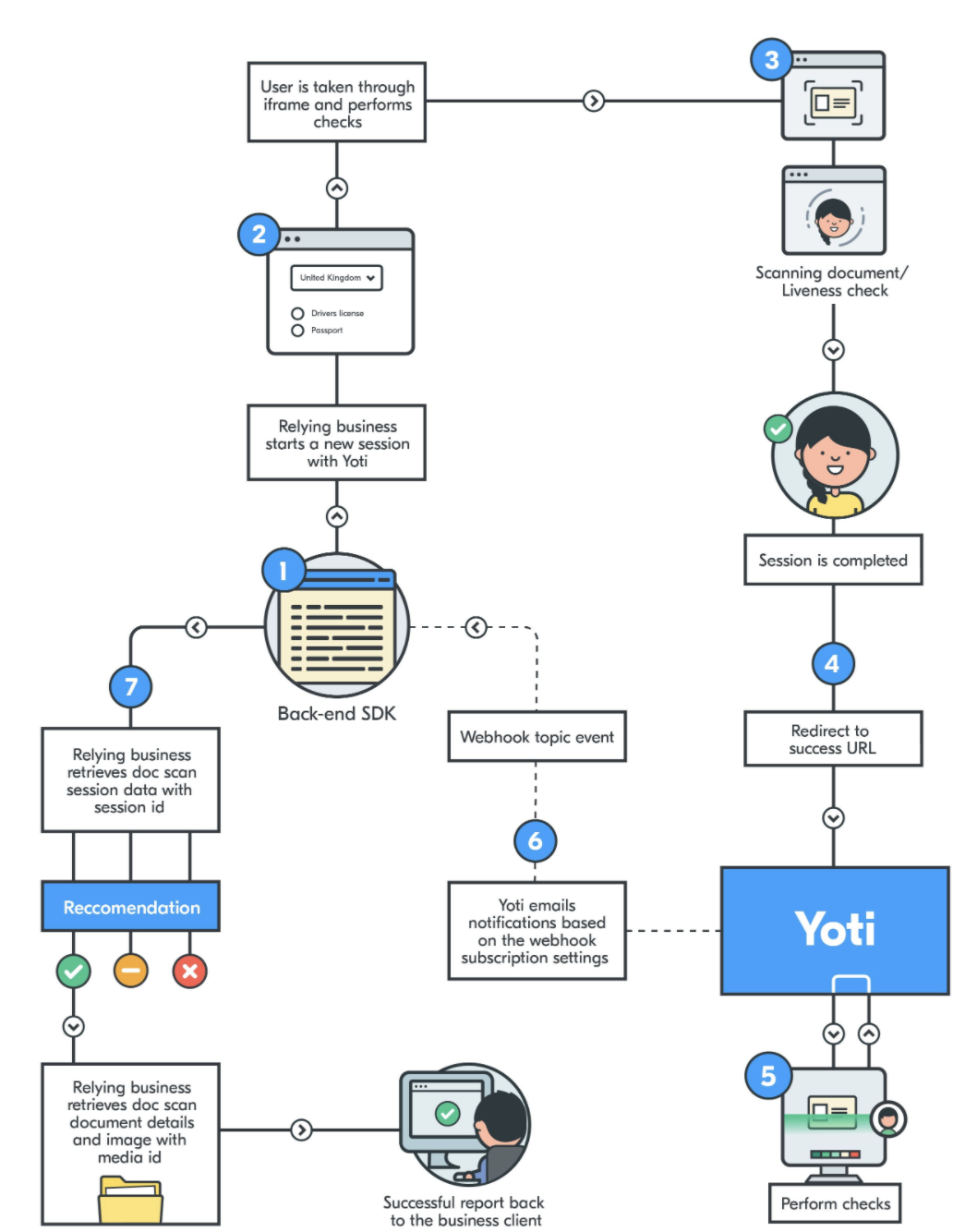
Every time a user elects to supply an ID document on the relying business app or website, you will need to create a session with Yoti to perform the ID checks.
Once the Yoti Client SDK has launched, it will take the end user through the ID document capture flow, followed by a liveness check (if requested when creating the session). Once this flow is completed the end user is redirected back to the relying business client, so that they may continue their journey. These redirects are defined when generating the session.
The session can be retrieved by the Yoti SDK using the session ID. The response from this endpoint contains all information, check and task completion statuses and resource and media data, along with the associated media identifiers.
The response will be in the form of either an object for data or a buffer string for images.
Translations supported
There are configuration settings to change the language of the information displayed to the end user.
Supported languages are:
American English 🇺🇸
Arabic (العربية) 🇦🇪
Bosnian (bosanski) 🇧🇦
Brazilian Portuguese (português brasileiro) 🇧🇷
Canadian English 🇨🇦
Simplified Chinese (Mainland China) (简体中文) 🇨🇳
Simplified Chinese (Singapore) (简体中文) 🇸🇬
Czech (čeština) 🇨🇿
Danish (Dansk) 🇩🇰
Dutch (Nederlands) 🇳🇱
English 🇬🇧
Finnish (Suomi) 🇫🇮
French (Français) 🇫🇷
German (Deutsch) 🇩🇪
Greek (Ελληνικά) 🇬🇷
Hindi (हिन्दी) 🇮🇳
Hungarian (Magyar) 🇭🇺
Indonesian (Bahasa Indonesia) 🇮🇩
Italian (Italiano) 🇮🇹
Japanese (日本語) 🇯🇵
Latin American Spanish (Español latinoamericano) 🌎
Malay (Bahasa Melayu) 🇲🇾
Norwegian Bokmål (Norsk bokmål) 🇳🇴
Polish (polski) 🇵🇱
Romanian (Română) 🇷🇴
Russian (русский) 🇷🇺
Serbian (Latin) 🇷🇸
Spanish (Español) 🇪🇸
Swedish (Svenska) 🇸🇪
Tamil (தமிழ்) 🇱🇰
Thai (ภาษาไทย) 🇹🇭
Turkish (Türkçe) 🇹🇷
Vietnamese (Tiếng Việt) 🇻🇳
We only support English and French translations for Identity Profile sessions
For information on how to integrate this please go to the Client preferences section. You will need to understand how to Create a session first.
The User flow
The user will be asked to prove their identity and is taken through the Yoti verification steps where they will have the option to upload or take a photo of their ID. You will then need to redirect them to a success or error URL, alternatively you can listen to post messaging from the iframe.
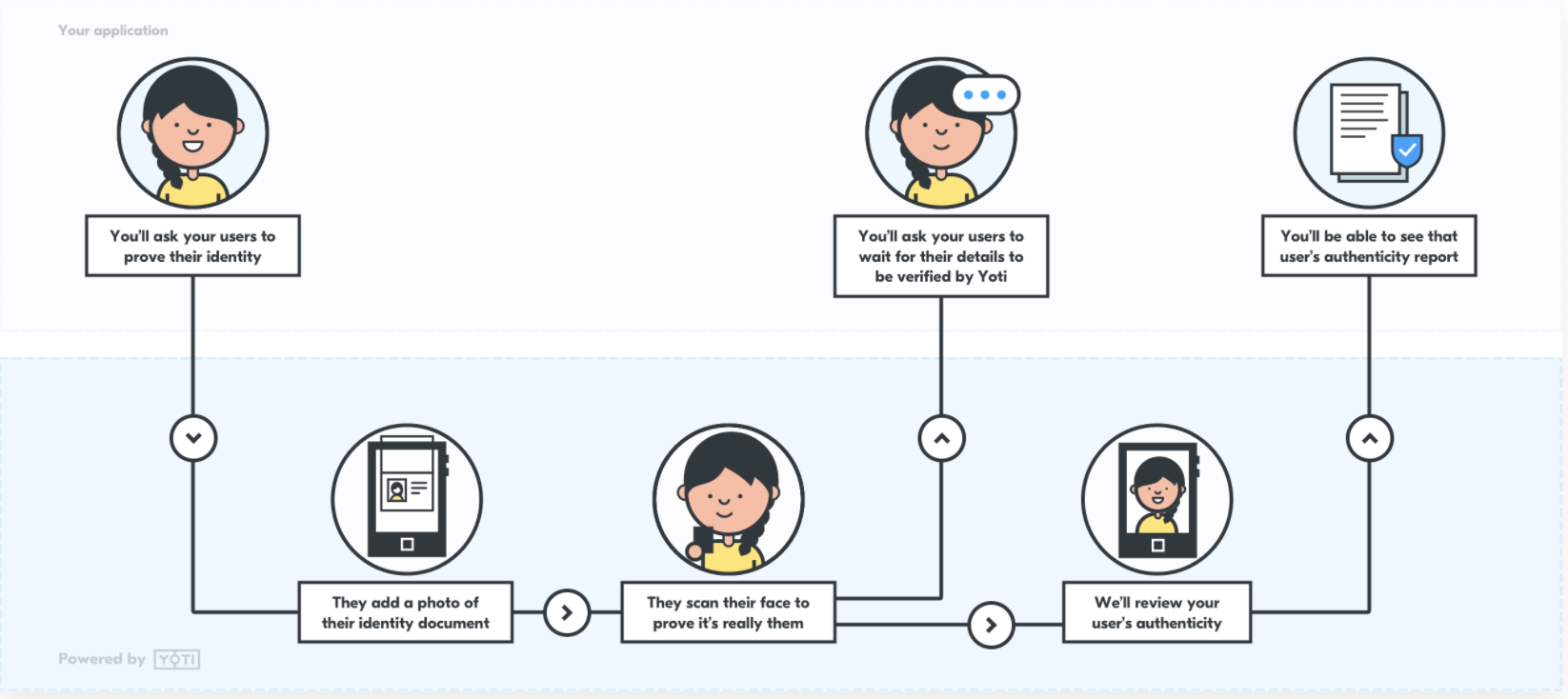
It is up to you how you initiate the service, whether that's via a button or directly.
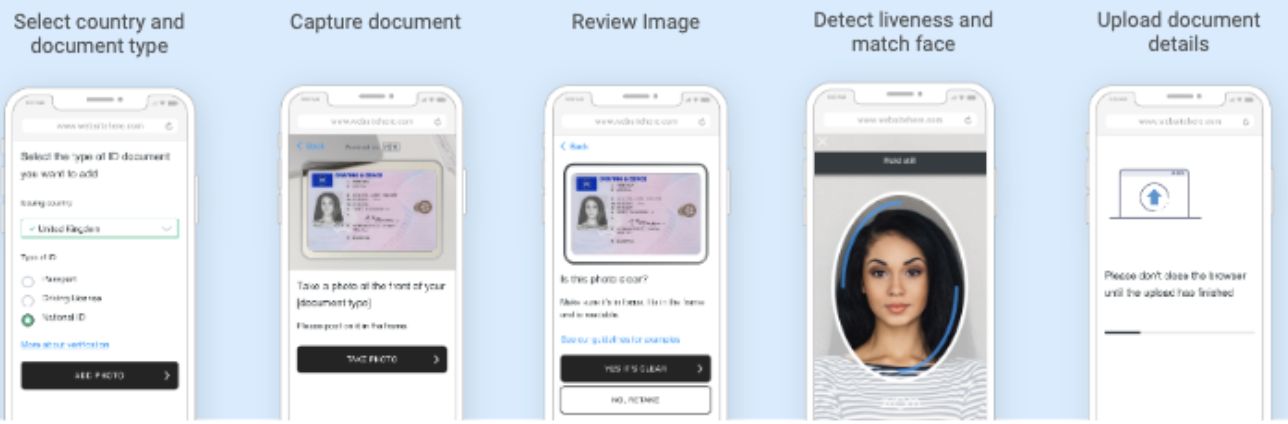
The user is asked to select the country and type of ID document they are submitting.
The image of the ID document is captured using the user’s device.
The user is asked to confirm that the image captured is clear.
The user performs a liveness test to prove they are a real person. This is the FaceTec ZoOm product where a user is asked to position their face in front of their phone camera, so it fits within the oval on the screen, and then move their face toward the screen following the instructions presented to them. FaceTec’s system is certified to Level 2 by a NIST certified testing company for liveness and is also very effective at detecting mask attacks.
Passing a ‘liveness test’ in this way gives us a high confidence that the user attempting to create a Yoti account is a real person (not an automated ‘bot’) and that we have captured an image of their actual facial appearance on that date (rather than them having supplied a pre-existing photograph of themselves or a third party).
In session feedback
In session feedback is a method to provide feedback on how the extraction of a document has gone. If the extraction has failed due to an issue with image captured or uploaded we will provide an error screen to the user and instruct them on why the extraction has failed.
Failure Reason | Description |
|---|---|
FACE_NOT_FOUND | The face portrait could not be found found on the ID document image. |
OUT_OF_BOUNDS | Part of the document is outside the image frame. |
BAD_ANGLE | The document was photographed at too steep an angle, causing perspective distortion that makes data extraction unreliable. |
SCREEN_CAPTURE | The submitted image appears to be a photo of a screen displaying the document, rather than a photo of the physical document itself. |
OUT_OF_FOCUS | The image is not sharp enough. The document text is blurry. |
LOW_RESOLUTION | The image resolution is too low for reliable data extraction. |
GLARE_OBSTRUCTION | Light reflection or glare is obstructing part of the document. |
NO_COLOR | The image lacks colour information (e.g. a greyscale or black-and-white capture). |
NO_DOCUMENT | No document has been detected in the image. |
UNABLE_TO_READ_BARCODE | The documents barcode could not be read. |
MISSING_BACK___PAGE | The back side of the document has not been detected. |
NO_BARCODE | The documents barcode could not be detected. |
DOCUMENT_IS_EXPIRED | The document data extraction was successful, however the document has expired. This will not trigger if "allow expired documents" is turned on. |
Supported browsers
Device (Web SDK) | Browser | Version |
|---|---|---|
Android | Chrome | Last 3 versions |
iOS | Safari | Last 3 versions |
Desktop | Chrome | Last 4 versions |
Safari | Last 4 versions | |
Edge | Last 2 versions |
Supported OS
Device (Native SDK) | OS Version |
|---|---|
Android | Android 5.0+ |
iOS | iOS 14.0+ |
Using Yoti responsibly
We pride ourselves on how we handle our users' data. We use tech for good and enable users to securely prove their identity, always being transparent about what happens to their details. We ask that you follow these principles.

Be transparent about why you're collecting this data and only use the data for those reasons.
Only collect the information you actually need. Data minimisation is one of the main benefits of Yoti, allowing people only to share what’s really necessary for a particular purpose.
Make sure the data you collect is stored securely. Data security is at the heart of what we do and we think it should be important to every organisation.