
OCR failure on the document is suggests that there’s something wrong with the submitted document imagery.
Yoti will process the document imagery and provide feedback to the user letting them know what the problem was and how to submit better imagery. The user will be prompted to try to submit document imagery again.
In-session feedback should:
Notify the user that something is wrong with the document imagery submitted
Provide the user with a chance to re-submit the document within the same session
Increase the likelihood that the imagery will lead to a successful check
By default, Yoti will allow 2 extra attempts. The screen that will be shown to the user on unsuccessful attempts is:
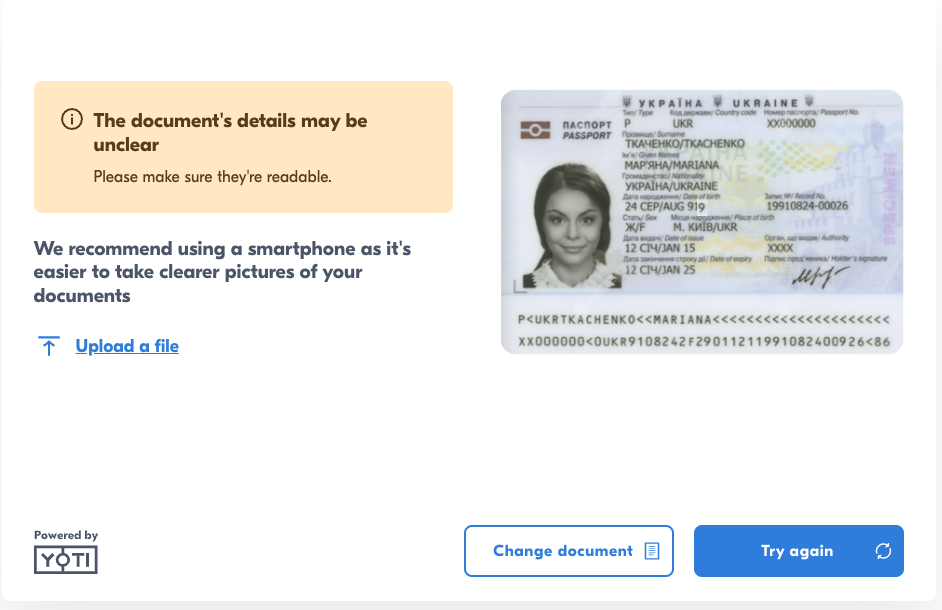
In-session feedback reasons
Reason | Description |
|---|---|
FACE_NOT_FOUND | The face portrait could not be found found on the ID document image. |
OUT_OF_BOUNDS | Part of the document is outside the image frame. |
BAD_ANGLE | The document was photographed at too steep an angle, causing perspective distortion that makes data extraction unreliable. |
SCREEN_CAPTURE | The submitted image appears to be a photo of a screen displaying the document, rather than a photo of the physical document itself. |
OUT_OF_FOCUS | The image is not sharp enough. The document text is blurry. |
LOW_RESOLUTION | The image resolution is too low for reliable data extraction. |
GLARE_OBSTRUCTION | Light reflection or glare is obstructing part of the document. |
NO_COLOR | The image lacks colour information (e.g. a greyscale or black-and-white capture). |
NO_DOCUMENT | No document has been detected in the image. |
UNABLE_TO_READ_BARCODE | The documents barcode could not be read. |
MISSING_BACK_PAGE | The back side of the document has not been detected. |
DOCUMENT_EXPIRED | The document data extraction was successful, however the document has expired. This will not trigger if "allow expired documents" is turned on. |
NO_BARCODE | The documents barcode could not be detected. |
The user flow is as follows:
The user will select document type and country.
The user will upload / take a photo of the document.
If the document can be OCR’d it will go through.
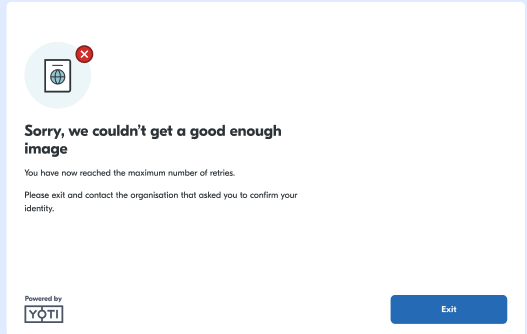
If the document cannot be processed due to problems with the submitted imagery, they will be asked to retry or change their document type.
If the user has reached their maximum attempts the session will end there.
Reclassification
If the wrong document is uploaded, Yoti will attempt to reclassify the document. That means that if the submitted document type or/and country would be different from the ones the user selected, Yoti will save it under the detected one if the data is extracted successfully.